Loading check: 27 May 2026
Opening XX8 Games on Mobile: Access and Loading Checks
This page separates app installation from opening individual games and explains what to inspect when a title stalls or loads slowly.

How individual titles are opened
Separate package setup from loading a game
“Game download” may refer to app installation, opening a title or waiting for game assets to load. This page deals with opening games and resolving loading problems once setup is complete.
Use the Android package guide when Android setup has not been completed. Check phone performance, cached data and the network instead whenever the app opens but a title does not load.
- Open the app or supported browser version
- Confirm the account is signed in before choosing a game
- Choose a single title and let it load fully before doing anything else
- Remain on the same network while the game is loading
Choose between browser and app entry
Test the browser and app as two different access routes
The browser can be useful for a quick review, while the app may offer more consistent navigation. Select according to the handset, connection and account flow, and test both paths before assuming the service is unavailable.
Clear only the relevant browser cache and use a steady connection whenever the browser works but the app is slow. For app access, keep the version current and leave adequate unused storage.
Phone performance and connection
Test the device and connection before reporting a title
Low memory, restrictive battery saving or a network change can interrupt the first game load. Such delays are especially common when the mobile network is busy.
Run one controlled test: restart the app, open a single game, remain on one network and let the loading screen finish. Give support its exact name and the time of the error if only that title keeps failing.
- Close heavy apps running in the background
- Leave enough unused storage for loading and updates
- Disable restrictive battery saving while a game is open
- Give the help team the exact game name and error instead of saying only that it failed
Use deliberate session controls
Set boundaries and avoid repeated taps during lag
Set the session length and limit before launching a game. Planning first also reduces rushed taps, repeated reloads and confusion around wallet or reward labels.
Wait for a response before pressing again if a wallet or profile screen freezes. Repeated taps during lag make it unclear which action was recorded.
Screen reference
XX8 Game Loading Layout References
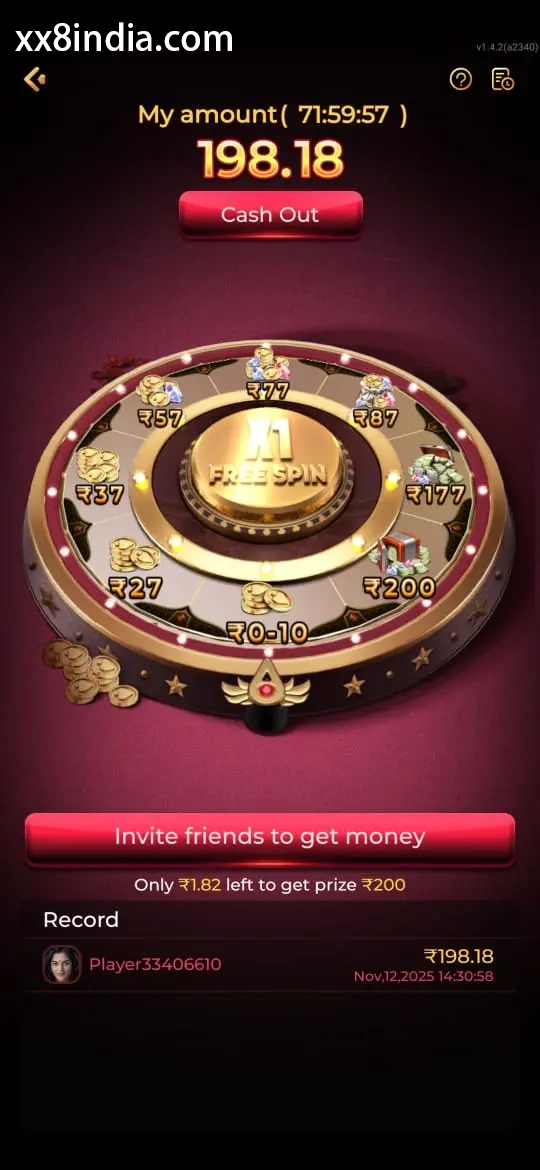
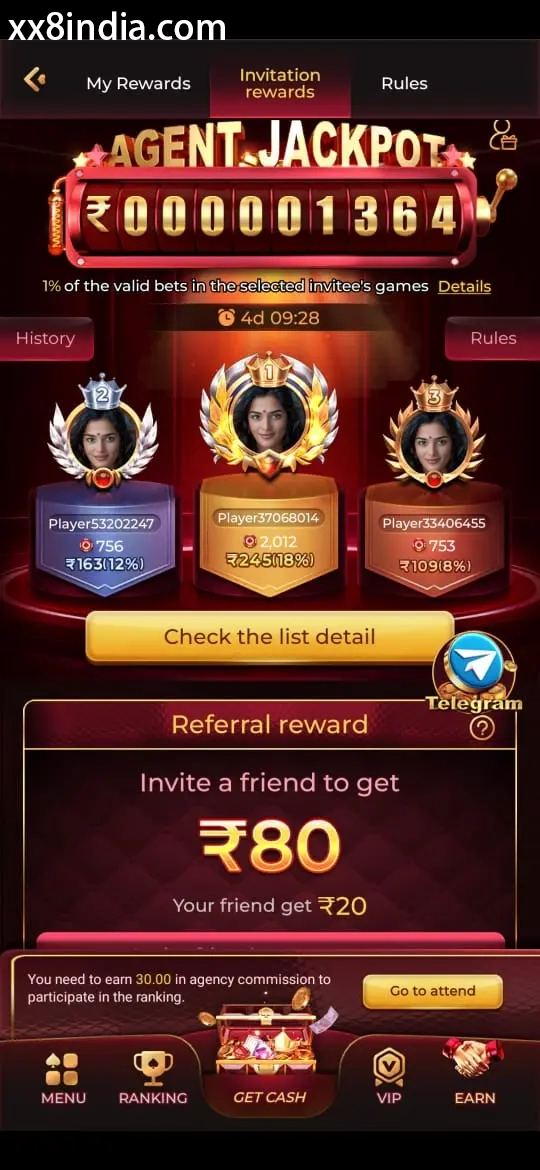
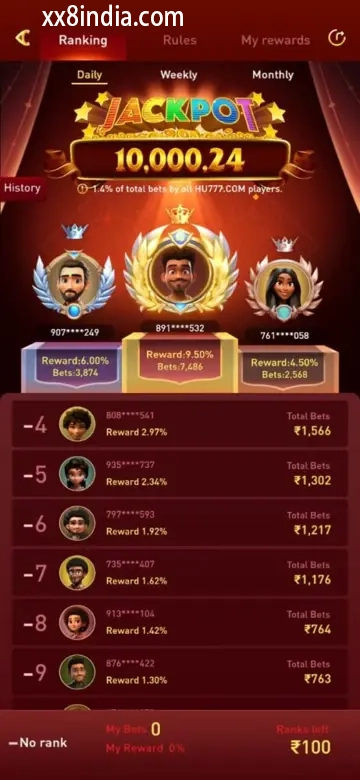
Treat the images as layout references only; follow the current prompts shown live on your own phone.
Other relevant guides
Open the most relevant follow-up guide
Troubleshoot sign-in
Use this page when an OTP, password or sign-in check blocks account access.
Review Android setup
Use this page to inspect where the file came from, what it requests and whether the device supports it.
Guide to game types
Use this page to understand the game groups before a phone session begins.
Questions this page answers
Points explained below
How does opening a game differ from downloading the APK?
Downloading the APK places the Android app on the phone. Game access begins later, when an individual title is opened and its content loads through the app or browser.
What makes games load slowly?
Delays may come from a weak connection, low storage, battery saving, stale cache or switching networks during loading.
Can XX8 titles run in a mobile browser?
Browser entry may be supported, although the experience can vary with the phone, connection quality and current account status.
What should be prepared before a title is opened?
Use one stable network, close resource-heavy background apps, confirm that sign-in works and read the visible game labels before continuing.